
Use of Phrase templates
Phrase templates facilitate work in the platform because you do not have to write the same phrases over and over again. They can e.g. contain advice for self-care and links to external websites.
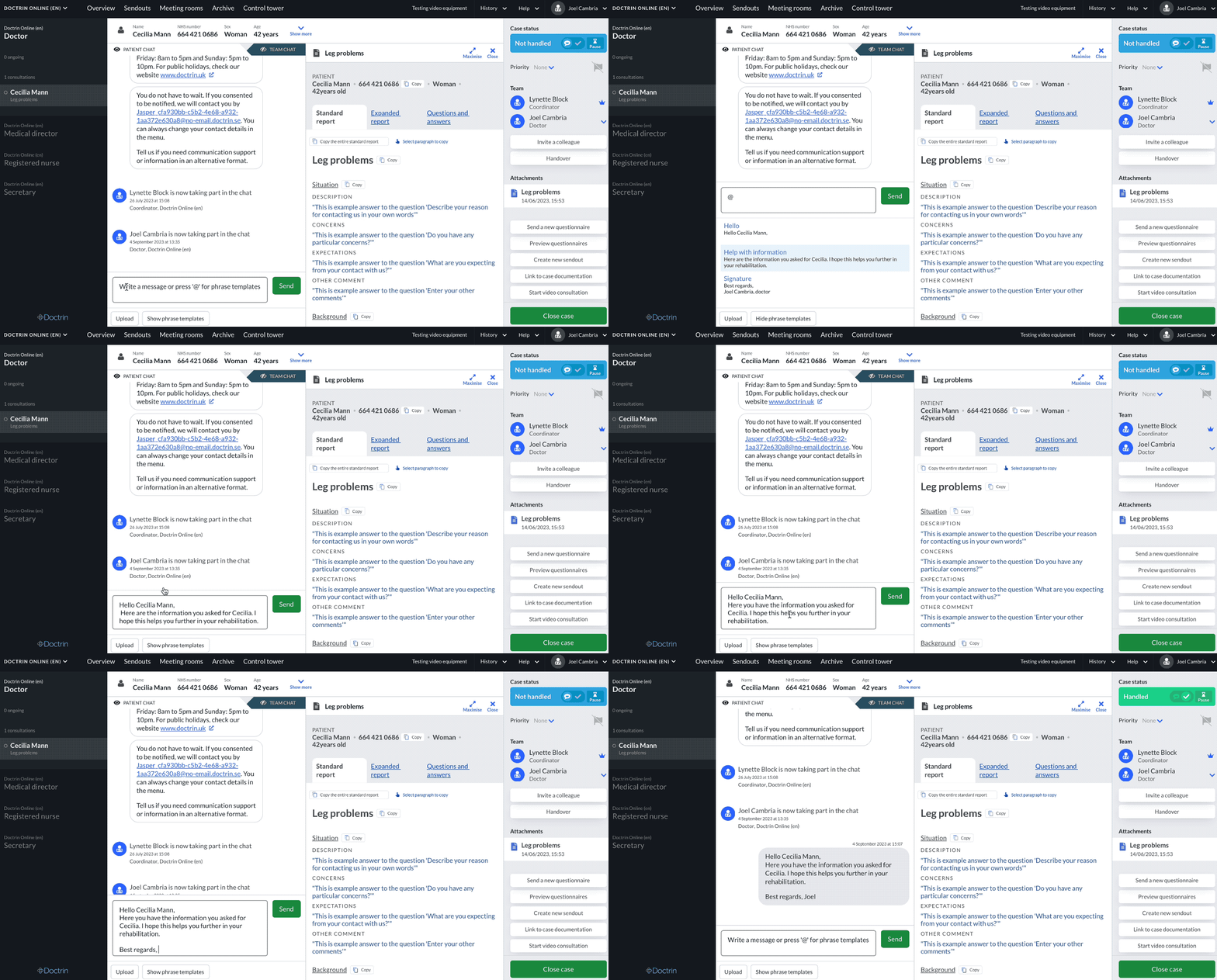
You can use predefined phrase templates when communicating with patients in the chat and in Sendouts. Templates will help you in using a clear and consistent language, and will improve your efficiency by not having to type all the words manually.
Users with the Unit Manager permission profile can easily set up templates for different kinds of information and occasions, such as phrases for greetings, phrases for patients that are not listed, advice for self-care etc.
Phrase templates can contain variables that dynamically fills the template with information from the case, such as the patient name and your name. Learn about creating and managing phrase templates.
How to use phrase templates in the chat
- Go to the case view for a patient.
- In the chat, phrase templates are integrated directly into the message field.
As you are writing a message type the @symbol to open the list of phrase templates for your unit. The words you type are matched against the title and content of the phrase template. You can still open the list the old way by clicking the button next to the chat. - You can browse the list by scrolling, or if you work with a keyboard, you can use the up and down arrows.
- Once the phrase template is highlighted with a light blue background colour, you can insert it.
- Select one by pressing Enter and continue with your message or add another template.
You can search for:
- The title.
- The text.
- It is possible to edit the text of a phrase template after inserting it in a message.
- It is also possible to insert several phrase templates one after the other.
- When you are ready, send the message by clicking the button or tap the keys Control + Enter on your keyboard.
Example of Phrase templates for chat messages:
Hi and welcome [Patient’s full name]! My name is [Sender’s full name] and I’m a doctor.
I assess that you need to see a district-/nurse at the healthcare centre. I have booked an appointment for 20XX-XX-XX, at XX:XX. Please confirm that you have received the information.
I have written an electronic recipe for you. You can pick it up at any pharmacy by identifying yourself.
I will discuss your matter with the medical team tomorrow and will get back to you after that.
I would like to have a video consultation with you now, would that be ok for you? Please confirm in the chat and I will send the instructions to you.
How to use phrase templates in Sendouts
First, follow the steps to start a new Sendout. When you are in the view of creating the content for a Sendout:
- Select “Add Phrase template” next to the chat message field.
- A list of phrase templates to choose from will appear in an overflow panel.
- You can edit the text if you want. It’s possible to add multiple phrase templates to a message.
Example of Phrase templates for Sendouts:
Hi [patient firstname]! I hope you are feeling well. I want to notify you that the x-rays do not show anything deviating.
Best regards, [Sender fullname], [Sender profession]
Hi! I am contacting you due to the fact that you do not appear to have been to an appointment with us for a long time, for a review of your medication for asthma. I ask you to answer the attached questionnaire.
Hi. I would like to have a video consultation with you at XX, would that be ok for you? Please write to me in the chat when you are ready and I will send the instructions to you when it is time.
If you do not see any Phrase Templates, contact your Unit Manager to add them for you.
Updated on 2023-09-04