
Filter, search and sort cases
Use filters and sorting to find cases or customise your workflow in the Overview.
In the search field you can use:
- patients name
- national identifier (such as social security number, NHS number, member ID)
- registered with a unit (if available)
- reasons for contact
- caregiver, by name (both owners and consultants)
- caregiver, by profession (both owners and consultants)
Search for a profession to quickly find all cases that are switchboarded to a specific profession or are asking a profession to join the case.
Note!
• Lists need to be unfolded to show the result.
• You can search for a patient’s identifier even if you can not see it in the list.
• If you leave a filter on, a banner will show up to inform you that you are currently not seeing all cases.
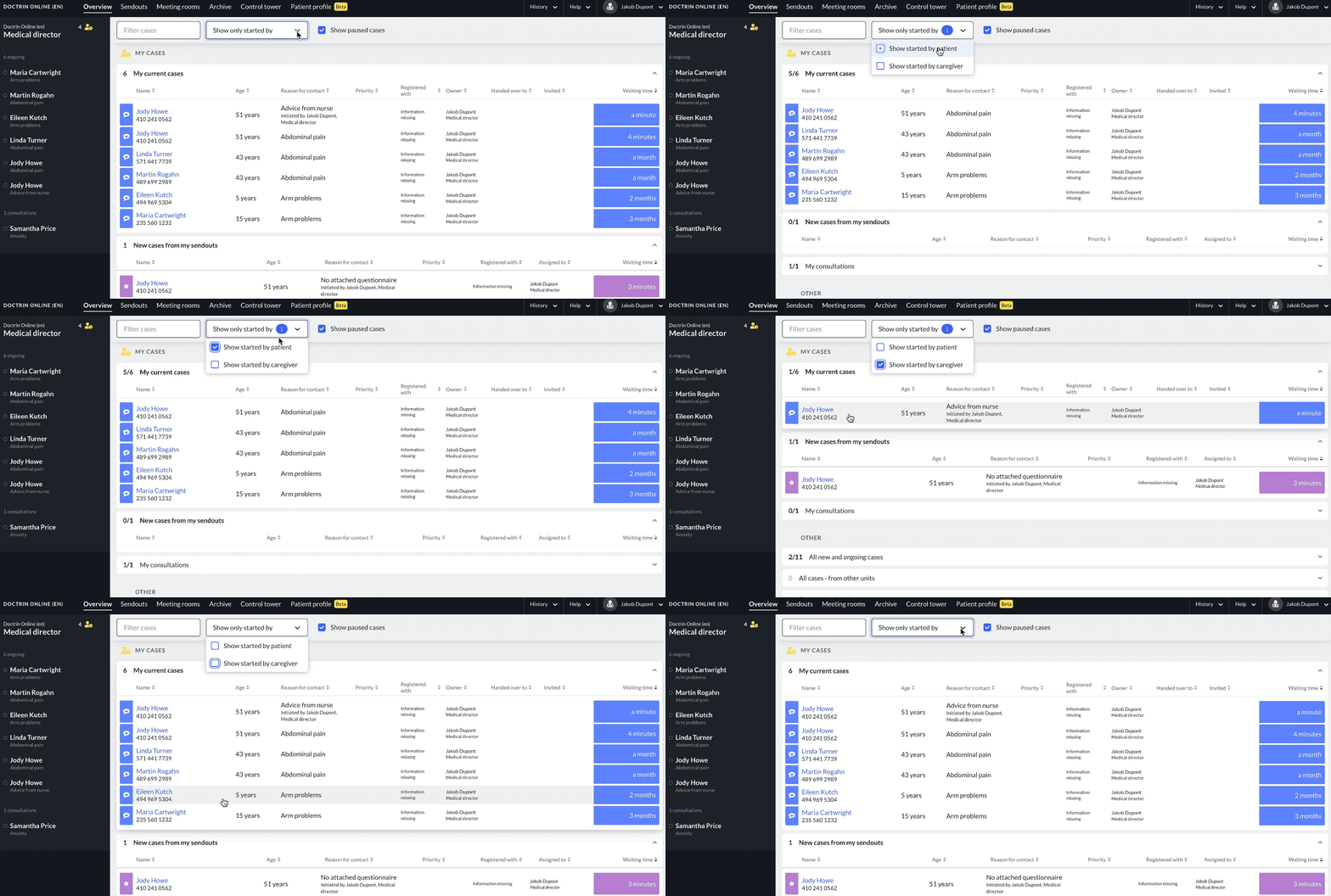
Filter: Show only cases started by patients/clinicians
If you have a workflow where you switch between e.g. staffing the chat for some time and also work with patients that needs long term care, use this filter to adapt the overview to what you need to see at the moment.
By default, all cases are displayed so that you do not miss anything. If you select “show started by patient”, only cases linked to a chat are shown. If you select “show started by clinician”, you will only see cases that have been created by responses to sendouts.
Show/hide paused cases
By using “Show paused cases” filter, you can decide whether your Overview should show or hide cases that have been paused. If you disable the filter, paused cases are hidden from all lists. The setting will be active until you enable “Show paused cases” again.
The first time you log in, “View paused cases” will be enabled. As before, the Overview shows all cases. If you choose to uncheck “Show paused cases”, paused cases are hidden from all lists in the Overview. The browser will save your last selection until the next time you log in to the same browser.
Note that the filter has no effect on the activity panel of the Overview.
If a patient writes in a case, it is no longer paused and is therefore displayed again in the Overview. Learn more about paused cases.
How to sort lists
You can sort a list by clicking the label at the top of each column. For example click Owner, and the list will be sorted by the name of the owner.
Each list can be sorted individually. By default, all lists are sorted by waiting time.
Updated on 2024-02-05