
Manage opening hours
To improve patient experience, use the Opening hours feature to display to the patient when your unit is opened or closed, or where to turn out of hours.
There are two reasons as to why you want to configure opening hours:
- Indicate that the unit is open: If you use Doctrin Network the patient will have the possibility to choose what unit to start their case at. When comparing the units, it is helpful for the patient to know which unit is currently open and which is not. When unit is open a green dot will be displayed with the text “Chat is staffed”
- Indicate that the unit is closed: You can display a message that is shown to patients that enter a case when the unit is closed.
Add opening hours
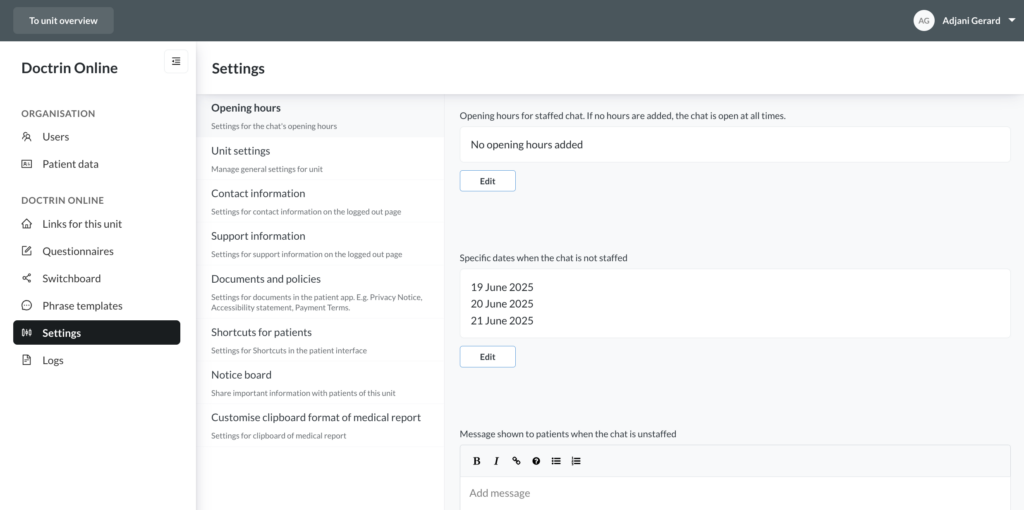
In order to show this information to the patient, you need to configure the regular weekly opening hours. You can add exception days, which will override the weekly opening hours.
Add weekly opening hours
- Login in to Admin and select the unit you want to manage.
- Go to Settings and Opening hours
- Under Opening hours for staffed chat select “Edit”
- Select weekday and when the unit opens and when it closes.
- Select “Add” to add a new rule.
- When you are done – Save
Add exception dates
- Login in to Admin and select the unit you want to manage.
- Go to Settings and Opening hours.
- Under Specific dates when the chat is not staffed select “Edit”.
- Select “Add” and choose the desired date.
- Click Save when you’ve added all the dates you want.
Advice for holidays and long weekends
Set specific dates when the chat is either unstaffed or less staffed. It is also possible to add an information text to make it clear to the patient what applies during these dates.
Note
Holidays are not defined in the platform. This means that all days are handled in the same way. E.g. if 26 December is a public holiday that falls on a weekday, you need to share information about it.
Show the information banner when unit is closed
If you want to show a banner in the chat outside of opening hours, you need to enter a text for the message.
- Login in to Admin and select the unit you want to manage.
- Go to Settings and Opening hours.
- In the text module add all the texts you want to display to the patient.
- Verify that the Preview looks as you expect.
- Save.
Updated on 2025-06-02