
Create a bulk sendout – for information sendouts
Bulk sendouts is an extension to sendouts where you can send the same information to several people at the same time. Using bulk sendouts will save you time from repetitive manual tasks.
If you have not used sendouts before, start by reading Getting started with sendouts first.
Bulk sendouts is available for type information sendouts. There are 2 types of sendouts; default with chat/case and information sendouts. Learn more about types of sendouts.
How to send an information sendout to several recipients
- Go to the main menu for your unit.
- Select “Sendouts”.
- Select “Create bulk sendout”.
- Enter an identifier to search for a patient/recipient. This can be e.g. nhs number depending on how your unit is configured.
- Two things can happen;
| Result | How to continue |
| —————————————————– | ——————————————————————————————————————————————————————————————————————————————————————————————————————————————————————————————————————————— |
| The patient is already registered in the platform | Their information is shown and you can choose to add them to the list of recipients. You also get information whether the patient has chosen to give consent to be contacted digitally or not. You can not continue without consent from a patient. 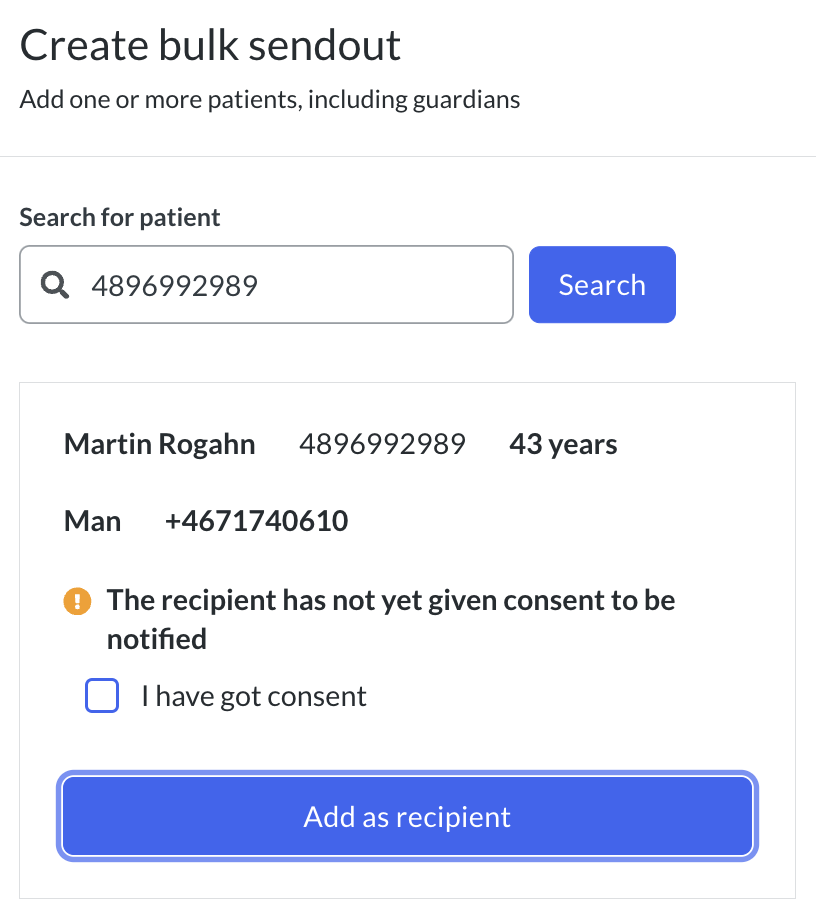 |
| The patient do not exist in the platform | You will be asked to complete information about the patient before continuing to add the patient to the recipient list. In this view you can also enter whether the patient has given their consent to be contacted digitally. This is then saved in the platform. You can not continue without consent from a patient.
|
| The patient do not exist in the platform | You will be asked to complete information about the patient before continuing to add the patient to the recipient list. In this view you can also enter whether the patient has given their consent to be contacted digitally. This is then saved in the platform. You can not continue without consent from a patient. 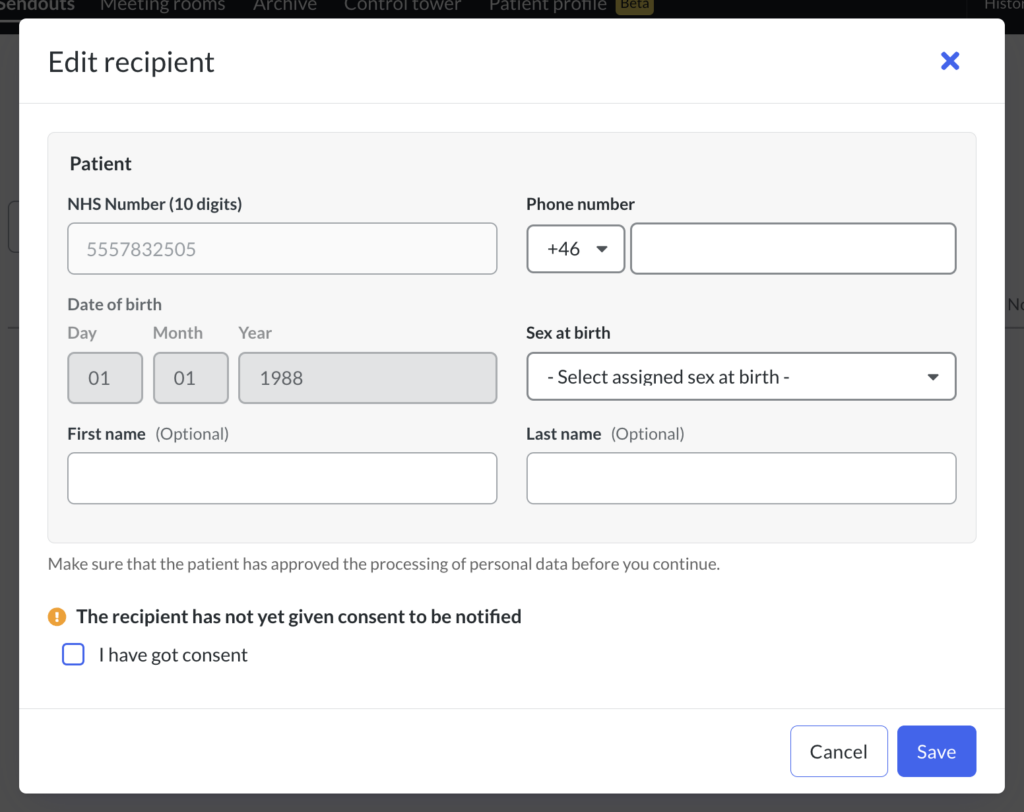 |
|
- Choose to add more recipients before moving on to creating the content.
Tip! If you have many recipients to contact, it is also possible to import recipients by a CSV file to avoid adding each recipient separately. Read more about importing a CSV file.
How to create content for an information sendout sent as bulk
This type replaces traditional letters. The patient can not reply to Information sendouts. You can send information such as exercise programmes, links to meeting rooms for group treatments or general information such as vaccination. No chat or case are created.
- Write a message to all recipients – they can read the message once they have logged into the platform. The message will not be visible in any SMS or email notifications the recipients receive.
Note! Do not write any personal information when using bulk sendouts. The same information is sent to all added recipients.
- Select sender – if a user is linked to several professions, you can choose from which profession you want a sendout to be sent.
- Attachments – it is possible to attach files in the formats PDF, JPG, PNG, GIF. 10 attachments can be attached in the same sendout. Each attachment can be up to 15 MB. The patient can view the attachments immediately after logging in.
- Read confirmation – if you request “reading confirmation” from a patient when creating a sendout, they can click a button to confirm that they have read the information. A patient can not respond to an information sendout, sent in bulk
- Send or schedule for later – choose to send a bulk sendout directly or schedule it for a later selected time.
- Notifications – recipients are notified (by SMS or email) with a link to the platform to view the information.
Additional information
Remember to consider the length of a message as the patient receives all the information in one message.
Updated on 2024-04-29