
List of sendouts – sent, scheduled and received
Sent or scheduled sendouts of all types are displayed in the sendout list. Each sendout has information and a status whether it is sent to one or more recipients.
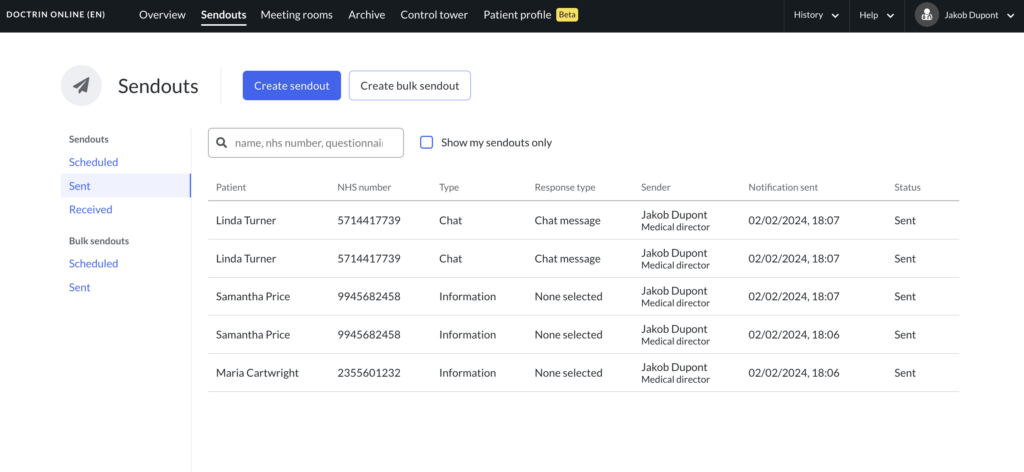
How the list of Sendouts work
The sendouts list displayed under the “Sendouts” tab in the main menu lists all types of sendouts. Here you can follow-up on sendouts sent to one or more recipients.
If you have access to see “all cases”, you will automatically see all sendouts for a unit. If you only want to see your own sendouts, select “Show only my sendouts”.
Sendouts – default with chat/case or information sendouts
| Tab | |
|---|---|
| Scheduled | These Sendouts have not yet been sent to a patient. |
| Sent | These Sendouts have been sent to a patient but have not yet been answered. If a patient responds to a Sendout of type “Default”, it is removed from this view and shown as a case in the Overview. If read confirmation is missing for type “Information sendout”If read confirmation has been requested and the patient has only opened the sendout or read the information without confirming that they has read the information, the sendout will remain under Sent. |
| Received | If the type “Information sendout” is enabled for a unit, there is a third “tab” called “Received”. All completed information Sendouts are automatically moved here, except when read confirmation has been requested and the patient has not chosen to confirm. |
Bulk sendouts – information sendouts
| Tab | |
|---|---|
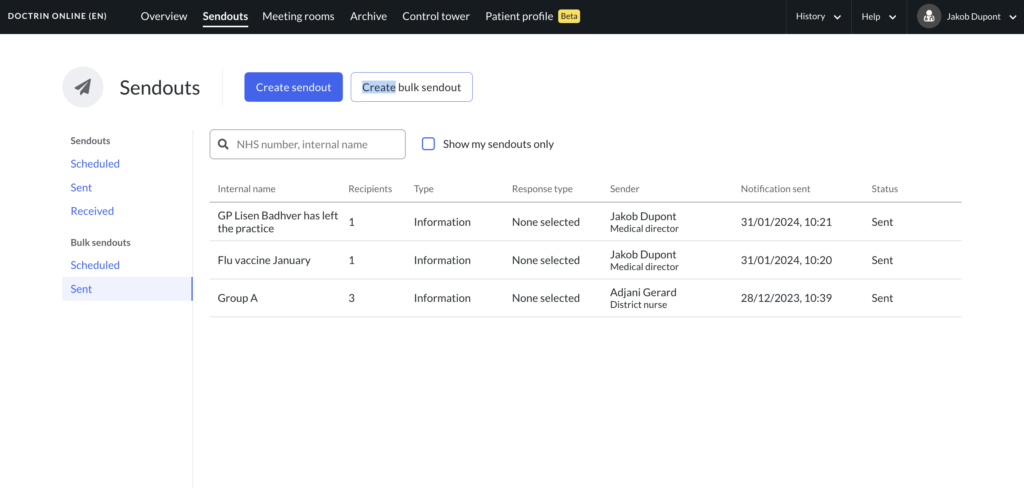
| Scheduled | These sendouts have not yet been sent to the recipients. |
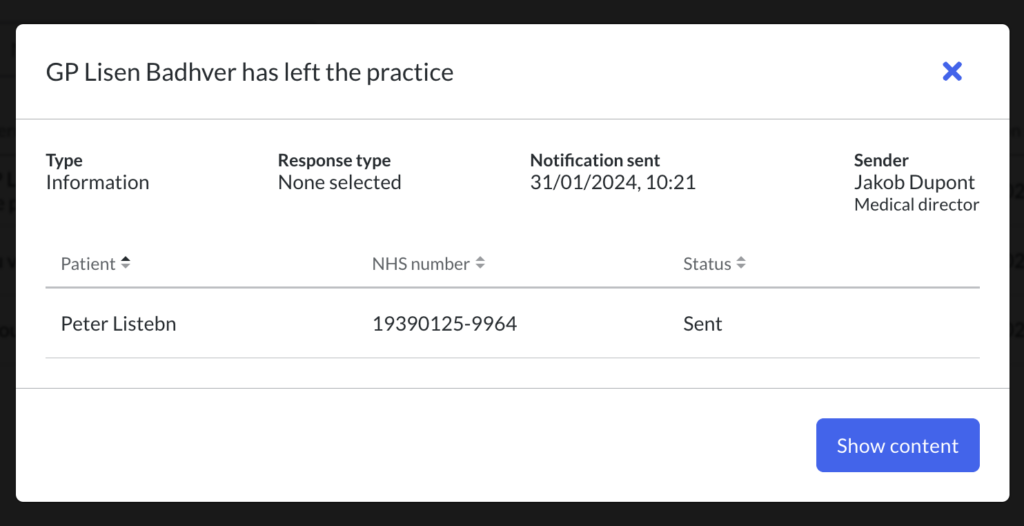
| Sent | These sendouts have been sent to the recipients. It is possible to follow up each recipient by opening the bulk sendout. |
Tip! Use the internal name to organise your bulk sendouts. Only you as a healthcare professional will see this name.
Updated on 2024-02-02