
Activity panel – ongoing cases
The activity panel gives you a quick overview of your ongoing cases in the platform.
The activity panel is always shown, regardless if you are in the Overview, or if you are in a case. It gives an overview of your ongoing cases.
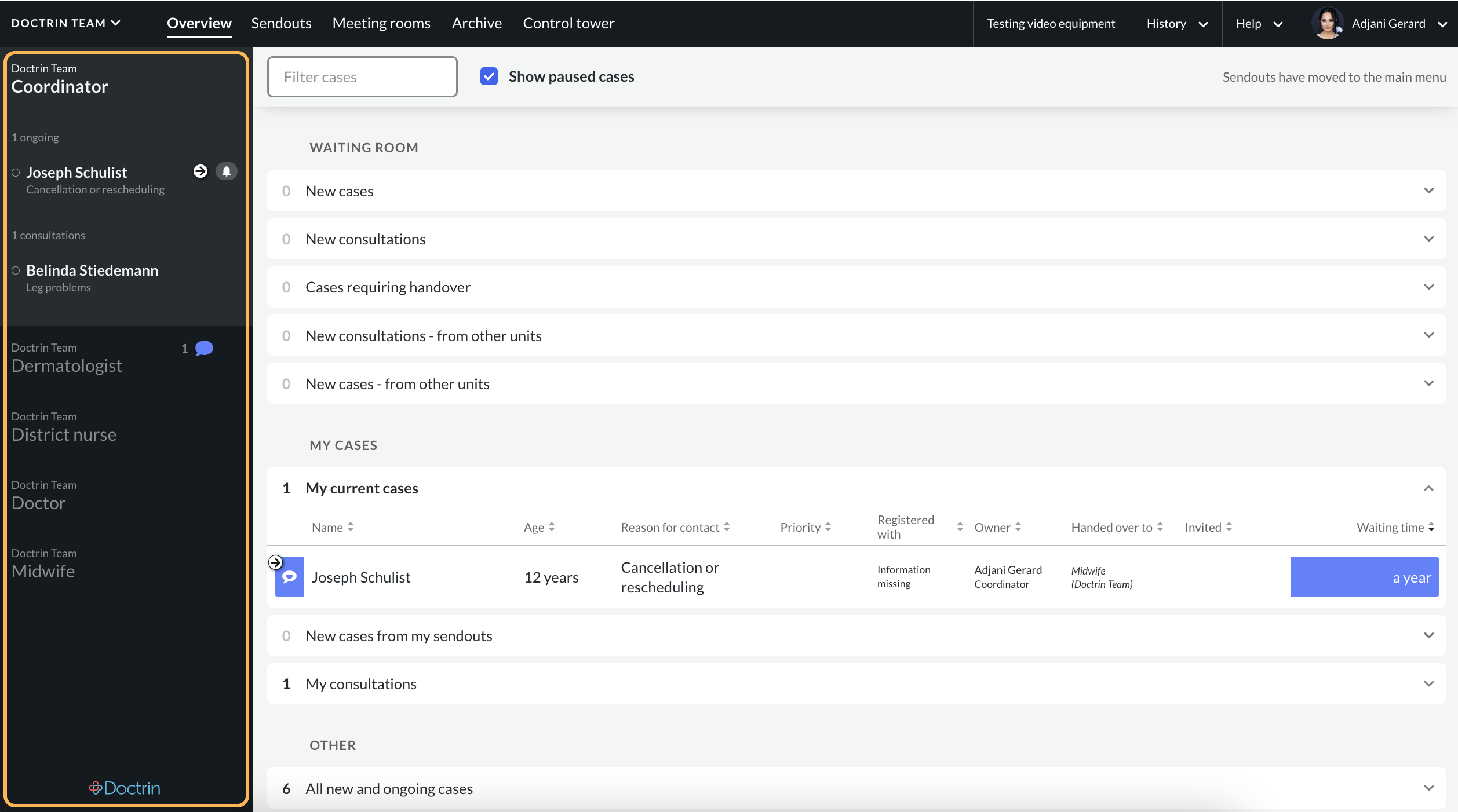
What you can find in the activity panel
- Your current unit.
- Your profession(s) at the current unit.
- If you have one profession at this unit, only this profession will be displayed.
- If you have multiple professions at this unit, your cases are sorted under the relevant profession in the activity panel.
- An icon with a summary of the current total number of new cases in the Waiting room. I.e This is a summary of new cases, new consultations, cases that require a new owner.
- A notification with a summary of the current total number of ongoing cases where a new activity has occurred.
- Number of ongoing cases where you are the owner.
- Number of ongoing cases where you are consulting.
- The name of the patients in the cases where you are a participant.
- If a patient is currently active or inactive.
- If the patient is active, i.e. has moved the cursor on the screen in the last 60 seconds or touched the screen on a smartphone, a green circle is visible next to the patient’s name.
- If the patient is inactive, i.e. has not moved the cursor on the screen in the last 60 seconds or touched the screen on a smartphone, a white circle is visible next to the patient’s name.
- If there are unread messages from the patient in the chat:
- A blue icon is displayed beside the name if there is new activity in the case that you have not seen. The number inside indicates the amount of new activities in the case since you last replied to the patient.
- If there are messages in the patient chat that have been read but are still unanswered:
- A grey icon is displayed beside the name. The number inside indicates the amount of activity in the case since you last replied to the patient.
- If there are unread messages in the team chat:
- A yellow icon is displayed beside the name if there is new activity in the team chat. The number inside indicates the amount of new activity in the case since you last replied in the team chat.
- If there are messages in the team chat that have been read but are still unanswered :
- A hollow icon with a yellow frame is displayed to the right of the name. The number inside indicates the amount of activity in the case since you last replied in the team chat.
Priority Flag – a red flag means that the case has been flagged in your unit.
Handover icon – means that a handover has been requested in the case.
Pause icon – means that the case has been paused.
Updated on 2023-01-19