
Switchboard
The switchboard saves valuable time by navigating certain questionnaires to certain professions’ waiting rooms. It allows you and your colleagues to work at the top of your licence.
With the help of the Switchboard you can choose how incoming cases in your organisation should be sorted. This is done by creating rules that determine to which method and profession a specific contact reason shall be sorted.
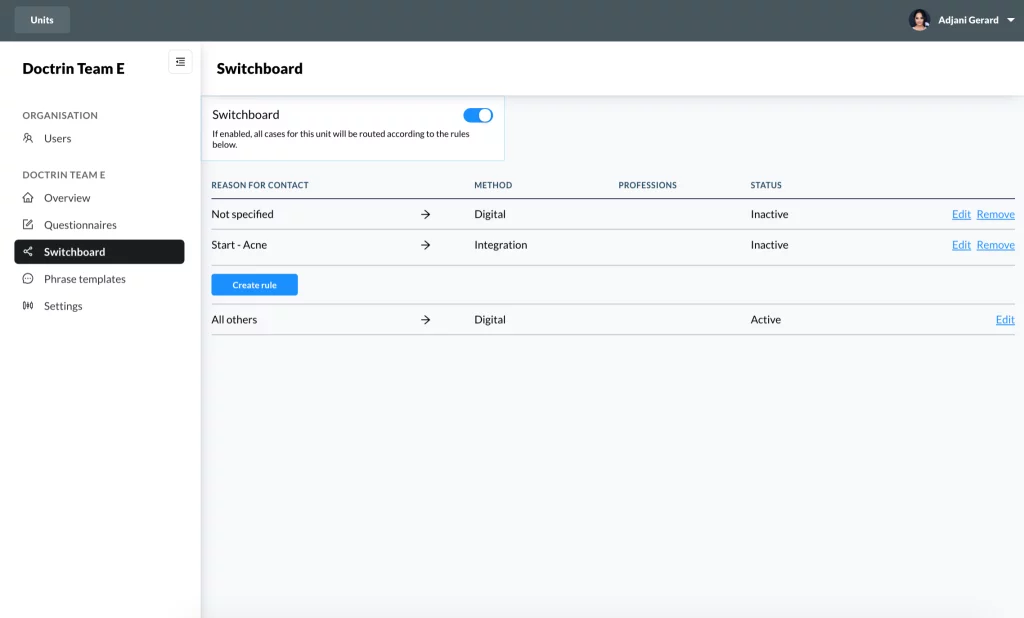
How to activate/deactivate the Switchboard
- Login in to Admin and select the unit you want to manage.
- Select Switchboard in the menu.
- Toggle on/off the Switchboard.
The Switchboard is now activated and all rules in this section applies.
Parameters in Switchboard rules
- Reason for contact – decides which Reason for contact/s the rule should apply to. Multiple reasons for contact can be selected.
- Method – decides whether the reasons for contact selected in the rule should be routed to the platform (digital) or to TeleQ.
- If Digital is selected, the case will be routed to the chat and can be handled by the HCP staff working in the platform.
- If TeleQ is selected, the patient will get to select a phone booking time that will appear to the user of TeleQ. If the case is routed to TeleQ, it will not be accessible in the platform.
- Professions – can be used together with the option Digital. Decides which professions should see the cases in the platform. If this is activated only the users with the professions selected will be able to see this case in the list New cases in the Waiting room.
How to create and activate/deactivate a rule
- Select “Create rule”. A container for the new rule has been created. It will be empty and deactivated until you fill it/configure it with context on how it should behave.
- Select “Edit”.
- Choose which Reason for contact/s the rule should apply to.
- Select which Method should be applied on the rule.
- Activate Professions and choose which professions should apply (optional).
- Select Status. The rule will not effect cases in your unit until it is activated. This allows you to create rules in advance and activate them when you want.
- Save.
The catch-all-rule for patient safety
To ensure patient safety there is one default rule with Reason for contact “All other” that can not be deleted. This rule ensures that all cases are connected to at least one rule. Cases that do not match the rules you create, will be handled by this rule.
By default it is set to Digital. You can change this to TeleQ if you want. It is important that you carefully consider the effects of this. If this setting is set to TeleQ and TeleQ is not activated for your unit, patients can not contact you. The other way around, if you are only using TeleQ and set this rule to Digital, patients will not be able to contact you.
Updated on 2023-01-23