
Create and manage phrase templates
Phrase templates are available to facilitate communication with patients. They save time from writing the same text over and over again, such as greetings or self-care advice.
Phrase templates are predefined texts that are available to the HCP working in the platform. They can be used in the Chat and Sendouts.
Create a phrase template
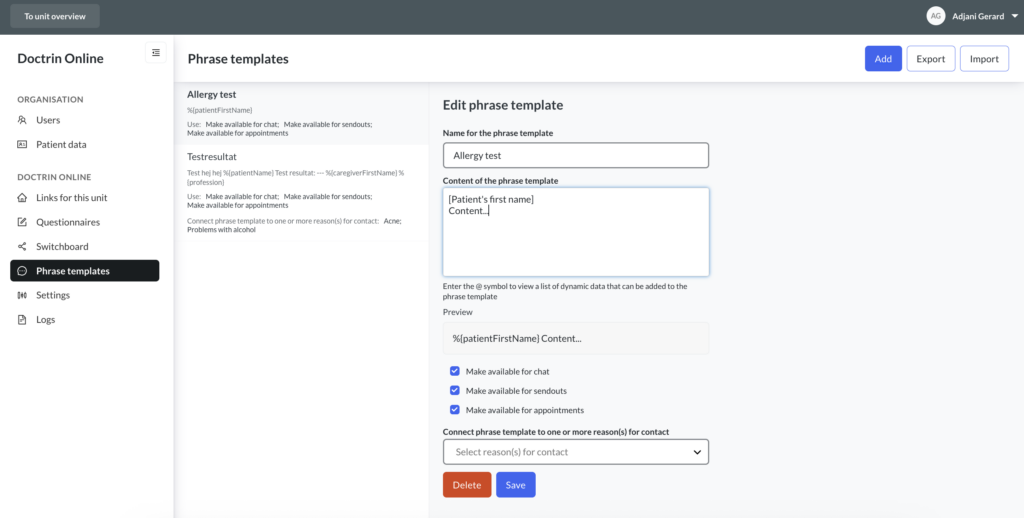
A Unit Manager for a unit can create and manage all phrase templates. Phrase templates are created by adding a name and a text for the content. It is possible to use a selection of variables and connect a phrase template to relevant reason for contact(s) (optional).
- Login in to admin and select the unit you want to manage.
- Select Phrase templates.
- Select “Add Phrase template”.
- Add a name – this text will only be shown to a clinician, not a patient. Make sure that the title contains relevant search terms, to make it easy for staff working in the platform to find the right template.
- In Phrase template content, add the actual text.
- Choose to make it available for chat, sendouts and appointments. Chat is selected by default.
- Save.
Connect a phrase template to reason(s) for contact
If a phrase template is tagged to be relevant to one or multiple reasons for contact, it will be easier for clinicians to find that template when handling the specific reason for contact.
For example, if a phrase template is tagged with “Acne”, this template will:
- Show at the top of the list by default if a clinician is consulting on a case with the reason for contact “Acne”.
- Show at the top of the list if a clinician types in “Acne” in the edit field.
Use variables in the templates
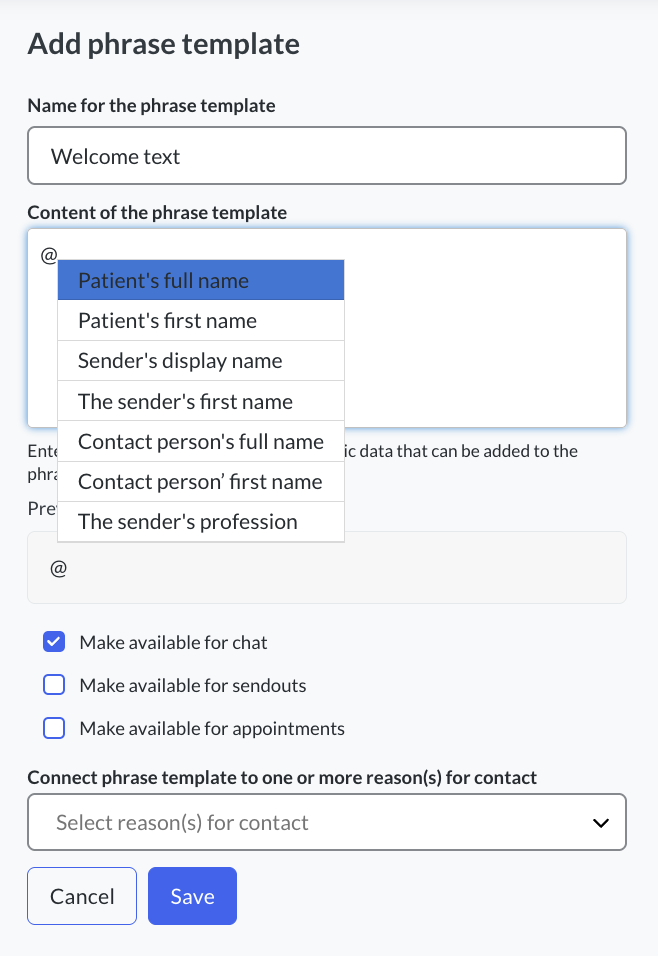
When a phrase template containing variables is used, the information will automatically appear where you have inserted variables. These variables can be used in the templates:
- The patient’s full name
- The patient’s first name
- The sender’s display name, display name can be added and changed for a user in the platform
- The sender’s first name
- The contact person’s full name
- The contact person’s first name
- The sender’s professional role
To see the list of possible variables, type ‘@’ in the filed for content. Select on one of the variables to add it. Variables will be coded with brackets.
Formatting and preview
When working with a phrase template, you can see a preview of how it will look with and without formatting.
A phrase template can be formatted with the following commands:
| Type of formatting | Commands to use | Example how to write |
|---|---|---|
| Header | # before the header | # Welcome to a yearly check-up |
| Line break | Two blanks in the end of the row | |
| Bold | 2 asterisks before and after the text you want to be bold | Remeber to give samples **2 weeks before the consultation**. |
| Link with optional text | [link text to be shown](url)Note: The url needs to include: https:// | You will find information for consultations including current guidelines for covid-19 on [our website](https://doctrin.se). |
Updated on 2025-05-05