
Create a user
To access Doctrin platform (Admin, the workspace etc.) a colleague need to be added as a user in your organisation. After a user is added, they need to be connected to a workplace – with the relevant permissions for that specific workplace.
Users are always added to the organisation level, this means that if you add a user to your unit, that user will also be available to be added to other units within your organization.
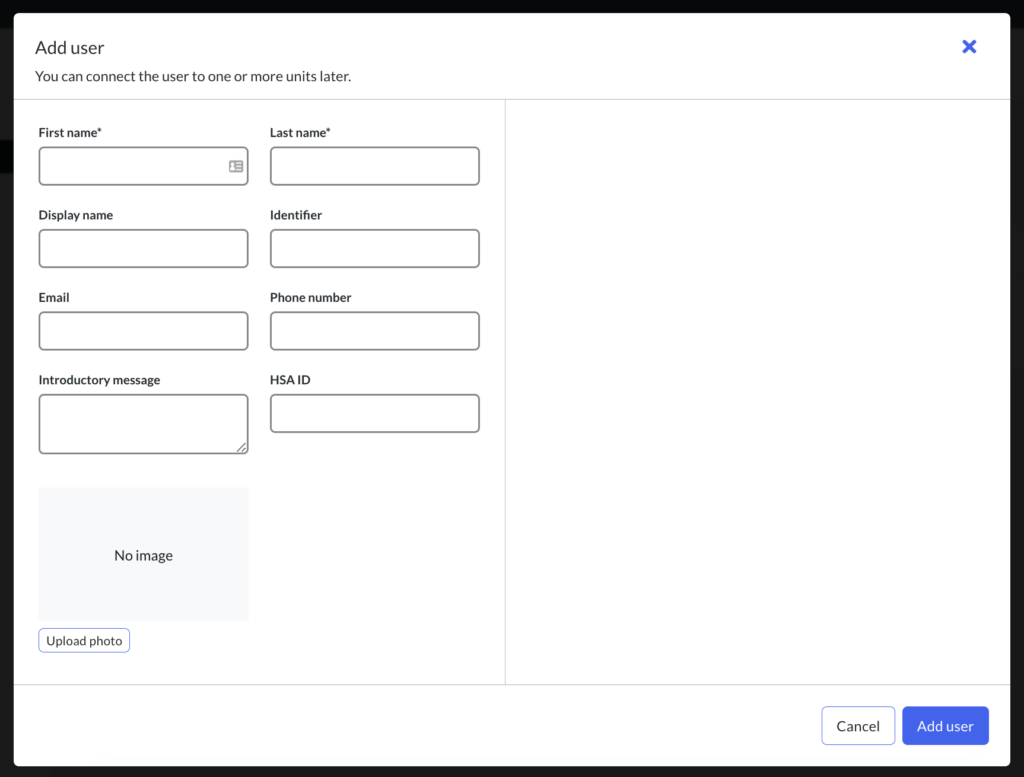
How to create a user
- Login in to Admin and select the unit you want to manage.
- Select Users in the menu. Here you see a list of users already on your unit.
- Select Add user.
- Add the required information in the fields.
Depending on the authentication method for your organisation, you need to add personal number/SSN, e-mail adress (Doctrins login soultion) and/or HSAID as an identifier. - A duplicate check is performed and any matches within the organisation are displayed in a list. If the user does not already exist, you can go ahead and create the user.
- Save.
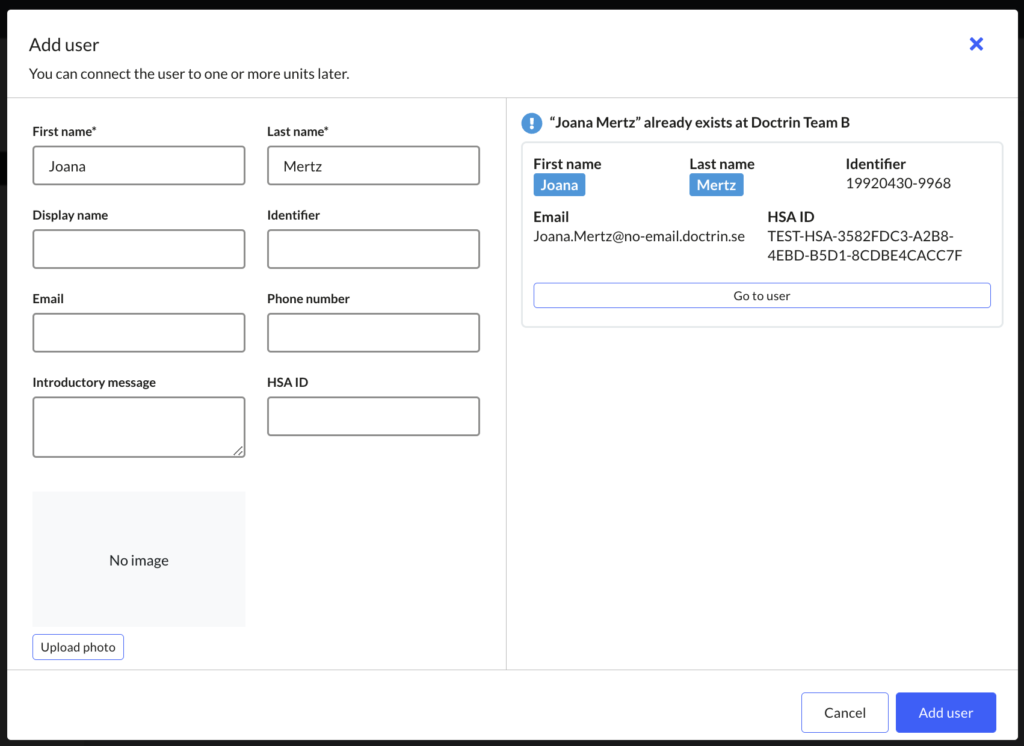
The user is now created in the organisation but can not currently access the platform. Connect the user to a workplace and set relevant permissions.
Description of the fields
Firstname and lastname – this is shown in the Overview, in lists for professional users and in the chat with a patient. If you want a custom name to be visible for the user in the platform, use Display name to override firstname and lastname.
Display name – a chosen namen that will be visible for the patient, while the full name will be displayed for colleagues. Display name can also be used in phrase templates by using a variable.
Social security number – may be needed for authentication.
Email address – is optional.
Mobile number – is for SMS notifications and therefore need to be a personal phone number. With a phone number added, the professional user will have the opportunity to turn on and off notifications in the workspace.
HSA ID – is indicated on the form SE2321000016-XXX123. If there is any uncertainty as to which HSA ID the user has, ask the user to test their card on test.siths.se (only via Internet Explorer, only one tab running). Then click “Save”.
Introduction message – is a message that is automatically sent in the chat when the user enters a case for the first time. This message will not trigger a notification to the patient.
Updated on 2024-05-24