
Share screen during video consultation
Screen sharing can be used to show a patient educational materials. Make sure your screen does not show information that is not intended for the patient to see, e.g. medical records.
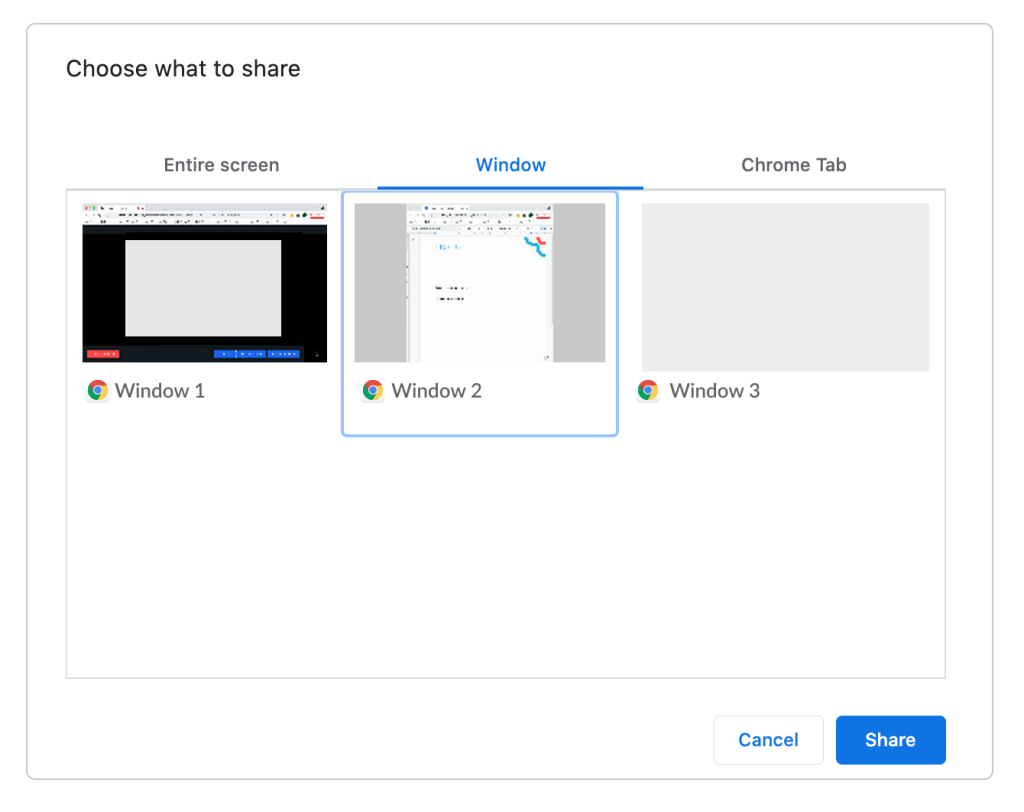
Caregivers can share content with one or more participants during a video consultation. Before sharing content you will be asked to choose what to share; a screen, an application or a browser tab. Thumbnails of each item will be shown, for an extra layer of safety, to avoid sharing sensitive data.
Only the owner of the case can share screen.
Inform all users in the unit how screen sharing works and pay attention to the following recommendations.
Recommendations for screen sharing
-
Make sure that the content shared does not contain sensitive information.
-
If the entire screen is shared, avoid opening anything that may contain sensitive information while the screen is being shared, e.g. medical records.
How to share screen during a video consultation
- While in the ongoing consultation, select “Share content”.
- Select what type of content you want to share, the entire screen, a window, or a tab in your browser.
- Select “Share” to start screen sharing.
Depending on the settings on your own device, you might need to allow the browser to share screen.
In the following image “Window” has been selected. This option has 3 Windows that is possible to share.
When you want to stop sharing your content, select “Stop sharing”. You will still be in the video consultation.
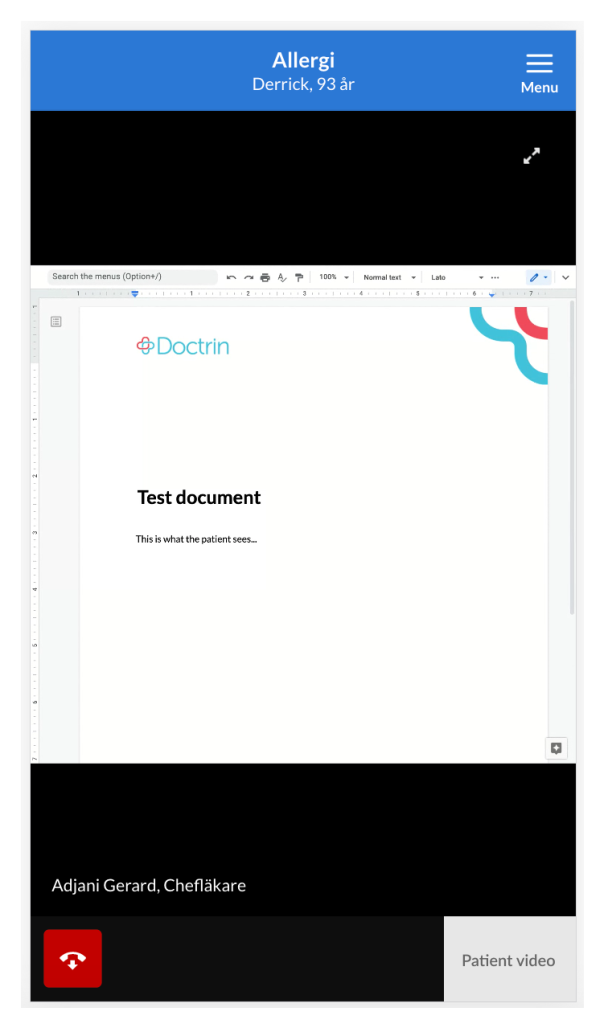
For a patient it will look like this:
Updated on 2023-01-20