
Invite a colleague to a case
Save time and get feedback from colleagues at the same time. Invite them to a case in the platform instead of looking for them at your physical workplace.
“Invite a colleague” means that you invite another user to take part in a case. The additional participant becomes a consultant in the case. The owner of a case remains the same, and have responsibility for the patient.
Cases with one or more invitations appear in the list “New consultations” for all users that match on name or profession.
If a colleague you invite declines an invitation, you can only see this in the chat. Not in the Overview.
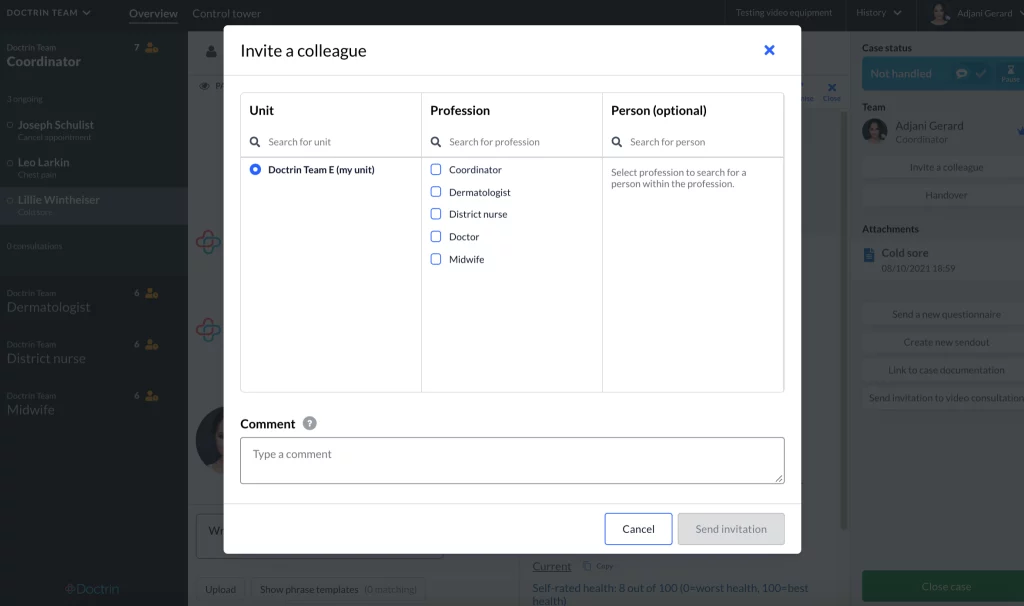
How to invite a colleague to a case
- Go to the case view for a patient.
- Select “Invite colleague” in the tool panel.
- In the pop-up that appears, choose to send an invitation to a whole profession(s) or a specific colleague:
- Select only a profession, if you want help from anyone in the group. It is possible to select multiple professions.
- Select also the name of a specific colleague, if you want help from a specific colleague.
- Add a comment if needed (optional).
- Select “Send invitation”.
The consultation you have asked for appears next to the participants in the tool panel, in the case view. This means that this case will appear in the list “New consultations” for all users with the profession you selected or for only the specific colleague you selected.
Updated on 2023-01-20