
Attachments
Patients can upload photos or PDFs to help describe their symptoms. Review attached images prior to discussing with the patient, as these can hold valuable information.
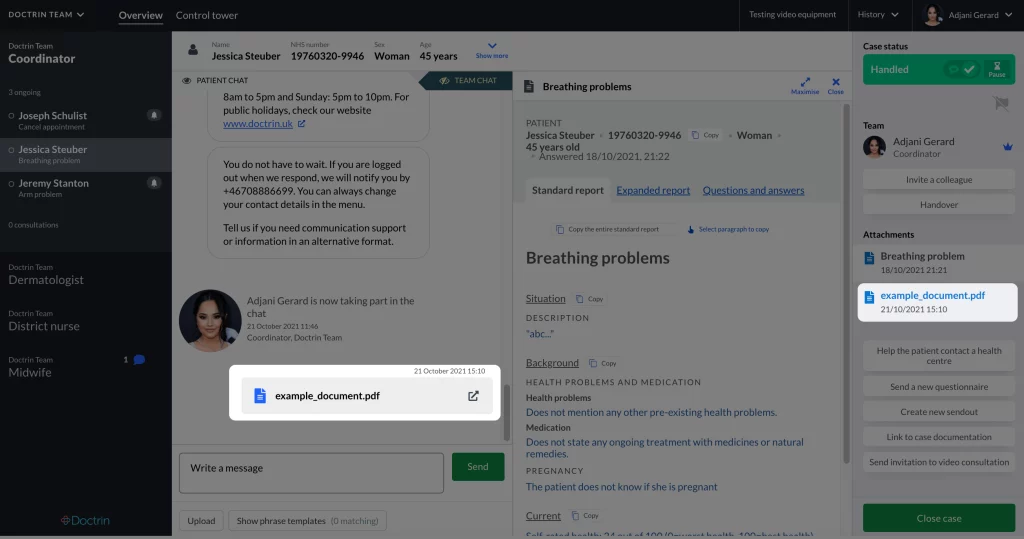
Attachments are typically medical history reports (based on questions answered by a patient), PDF’s or images uploaded by a patient. It can also be additional questionnaires sent to the patient.
Possible file formats for files that can be uploaded
- JPG (can be enlarged)
- PNG (can be enlarged)
- PDF (opens in a new tab)
- Word-document (.docx, opens in a new tab)
Note! Word documents can only be attached by healthcare staff and require additional configuration. Contact Doctrin to activate.
How to view an attached file
- Go the the case view for a patient.
- Attachments are listed in the tool panel, visible as a white tab with the date and time when the attachment was added.
- Select any attachment to view it.
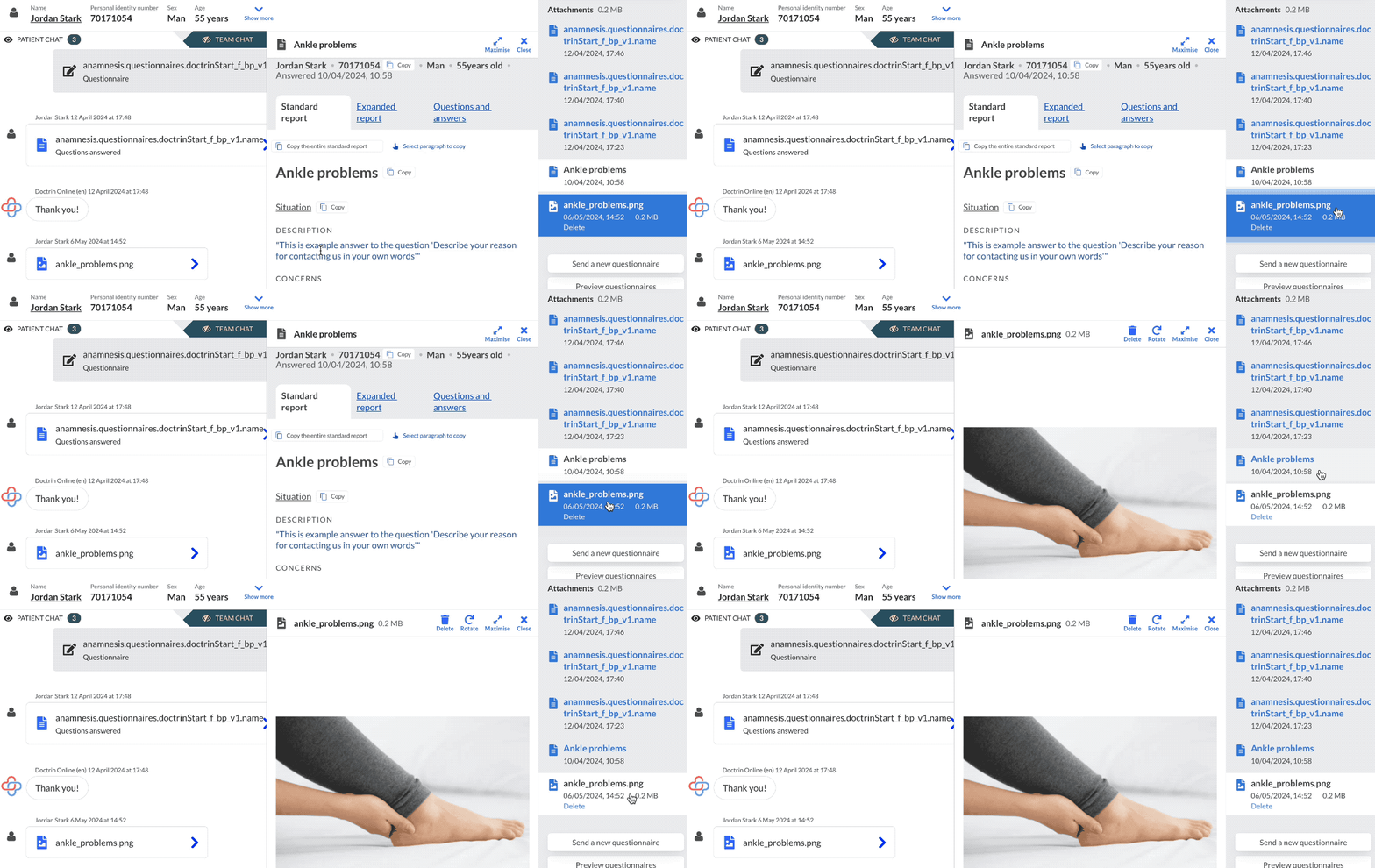
Note! To alert staff about new attachments, unread ones are marked with a pulsating blue frame. The marking is personal, so even if a colleague has viewed the attachment in the same case, it is still marked as unread for you. Attachments that a caregiver sends to a patient will also be listed in the same panel.
Patients can attach files to a case in two ways.
- as a last step during medical history taking
- in the chat, by pressing the camera button
By uploading files, the patient consent to them being saved in their health record if necessary. The patient is recommended to delete a file from their device after uploading it. The platform only ask for images if it is relevant for the reason of contact. The patient is also adviced not to upload intimate images.
Updated on 2026-05-29