
Change multiple users at the same time (bulk change)
Save time by bulk changing multiple users at once. The user overview helps you to keep track of who can do what on a unit. Manage users and permissions securely.
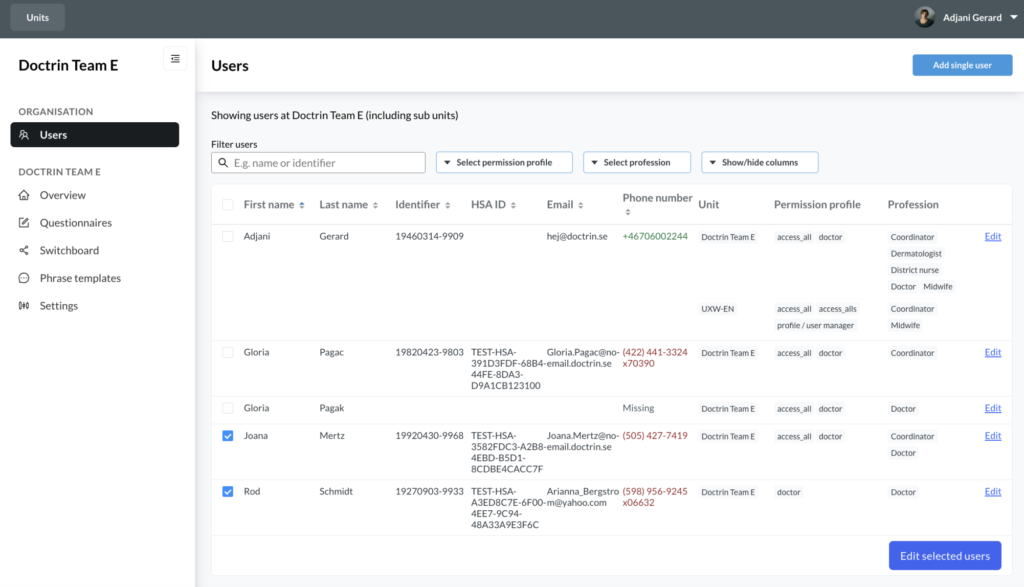
How to change multiple users at the same time
- Login to Admin.
- Select the unit that you want to manage.
- Select “Users” in the menu. Now you see all user on the unit.
- Select the users you want to manage by checking the checkboxes. You can select all users in the header of the table.
- Select “Change selected users”. You now see a new view with only your selected users.
- Choose to change the permission profile and/or profession of selected users.
-
- Permission profile
In the new window that appears, select the profile you want to add or remove. If you leave one or more of the profiles untouched, nothing changes. * Profession
In the new window that appears, select the professions you want to add or remove. Those that you leave untouched will not change.
If you have access to multiple units, you can choose between them from the list under the heading when managing permission profiles and professions.
- Permission profile
- When you select “Apply and review”, the overview of your selected users is displayed again. The changes you have chosen to make are highlighted in green and red. Green for what you have chosen to add, red for what you have chosen to remove.
- Select to “Save” the changes you have chosen or “Cancel”.
Updated on 2023-02-07