
Add, remove permission and delete users
People with the User Manager permission profile can manage users and ensure that each user only has access to parts of the platform needed to perform their work.
How to add user to unit/workplace
- Login in to Admin.
- Select the unit that you want to manage.
- Select Users in the menu. Here you can see a list of users already on your device.
- Select “Add user”
- Add information about the user in the fields.
- A duplicate check is now performed and any matches within the organisation are displayed as a list.
- Find the user you want to add to the unit in the list. Select “Add to [unit name]”
- A new “Add workplace” window appears. Select the unit in your organisation where the user will work.
- Select which permission profile the user need. Multiple choices are possible.
- If you select a permission profile with access to the Workspace you must also specify at least one profession for the user.
- Save.
Remove user from unit/workplace
When a user should not have access to a unit for an longer period, choose to switch off permission profiles for the user. They will no longer be able to log in to the unit.
This can be used e.g. in case of an longer absence such as leave of absence, parental leave or other absences. However, the user will be visible to User Managers and in log files.
In case of temporary absence, we recommend removing access to a unit (workplace) for a user instead of deleting it permanently.
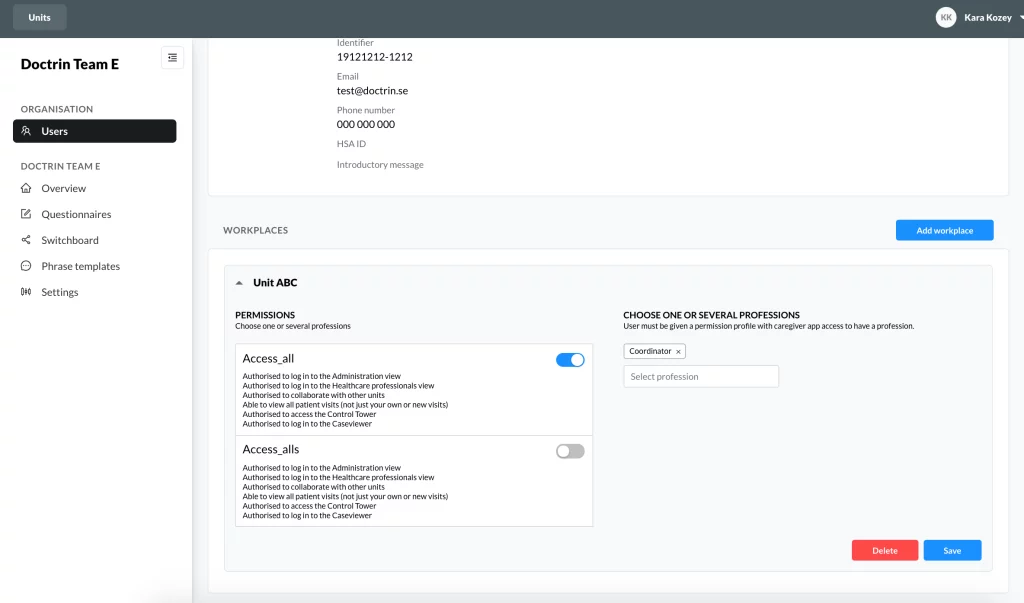
How to remove access for a user
- Login to Admin.
- Select the unit that you want to manage.
- Select Users.
- Find the user in the list of users. Use the search field to filter users.
- Select the user.
- Select a unit/workplace.
- Edit the “toggles” to remove access to this unit.
It is not possible to remove access for a user that has ongoing cases. You will see an error message if the user is active in any cases. More about viewing a user’s ongoing cases.
Delete a user permanently
When users should no longer have access to the platform, choose to delete them permanently. By deleting users, you can ensure that your unit complies with the requirements for handling sensitive data (it is not allowed to save the data of people who no longer work on the unit). A deleted user does not have access to any part of the platform.
Note that a deleted user can not be restored. It is deleted from the user list and is deleted from the database where users are registered. It is possible to create the same user again.
To ensure that deleting a user does not put a patient at risk, you can not delete a user in the following cases:
* when a user is responsible for one or more ongoing cases
* when a user has an ongoing video consultation (in a case or in a meeting room)
* when a user is the last person in their profession to have Doctrin Network connected to them.
In a user’s account, you can see if they have ongoing cases and choose to manage them before deleting a user. The platform tells you when you can not delete a user.
Users working in multiple units/workplaces
If a user works in multiple units/workplaces, a User Manager needs to have access to all these units to be able to delete the user. Otherwise they can remove access to a unit/workplace (see information on this page).
How to permanently delete users
- Log into Admin
- Select the unit you want to manage.
- Select “Users” in the menu.
- Use the search field to search for the user in the list of users.
- Select “Edit” for the user.
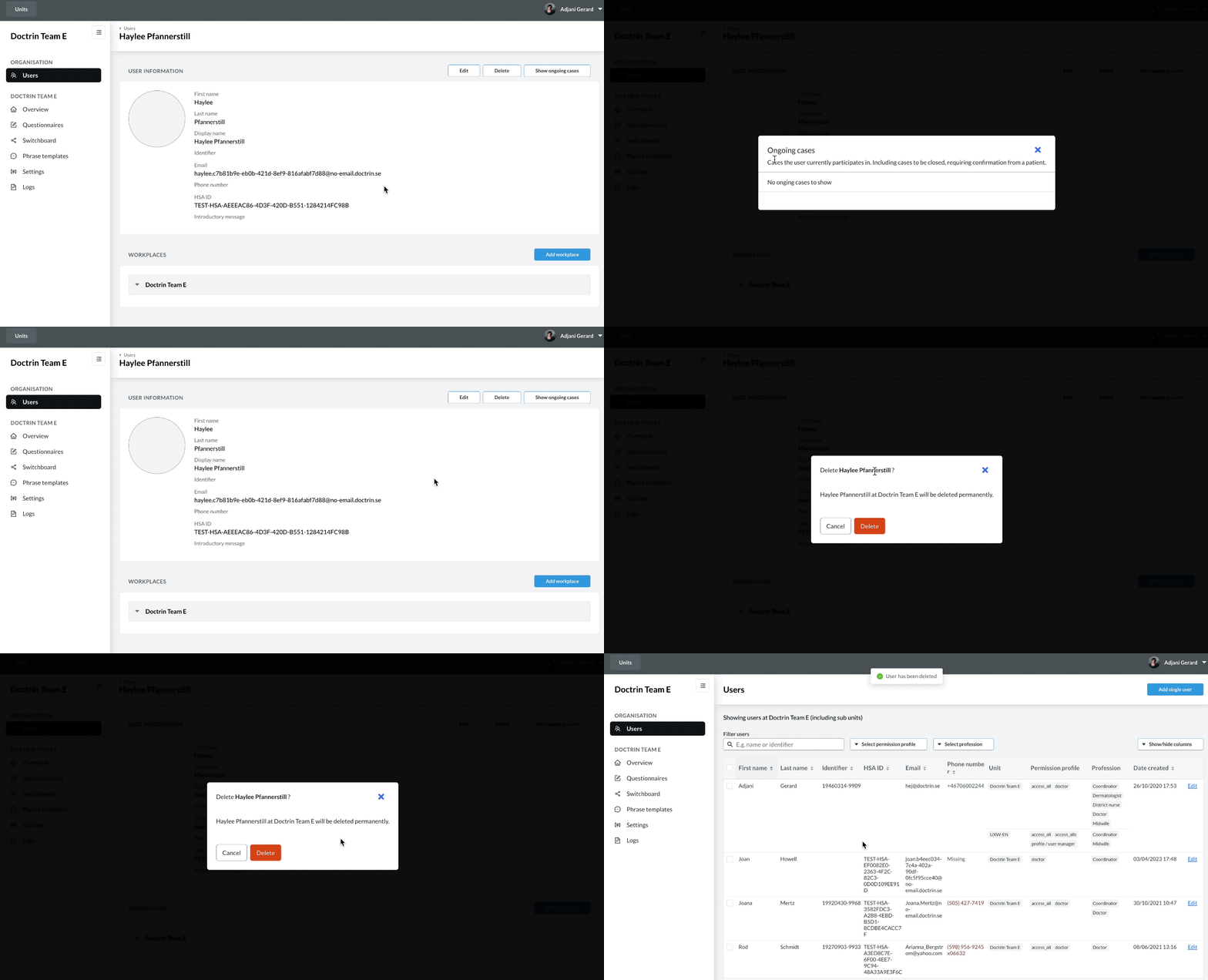
- Select “Delete”.
- The platform will ask you to confirm that the user should indeed be permanently deleted. If the user has ongoing activities, you will be informed about it and what actions you can take, in order to feel safe removing users.
If a patient has requested to have their data deleted, read about how to delete a patient and their data.
Updated on 2026-03-31